

Tutorials
How to set your first Wakeletics alarm, step by step
Time, days, push-ups or squats, how many, the sound and the backup rings — every choice on the alarm screen, and what happens when it rings.
By Daniel & Samuel Krucay, co-founders of Wakeletics
· 4 October 2026 · 6 min read
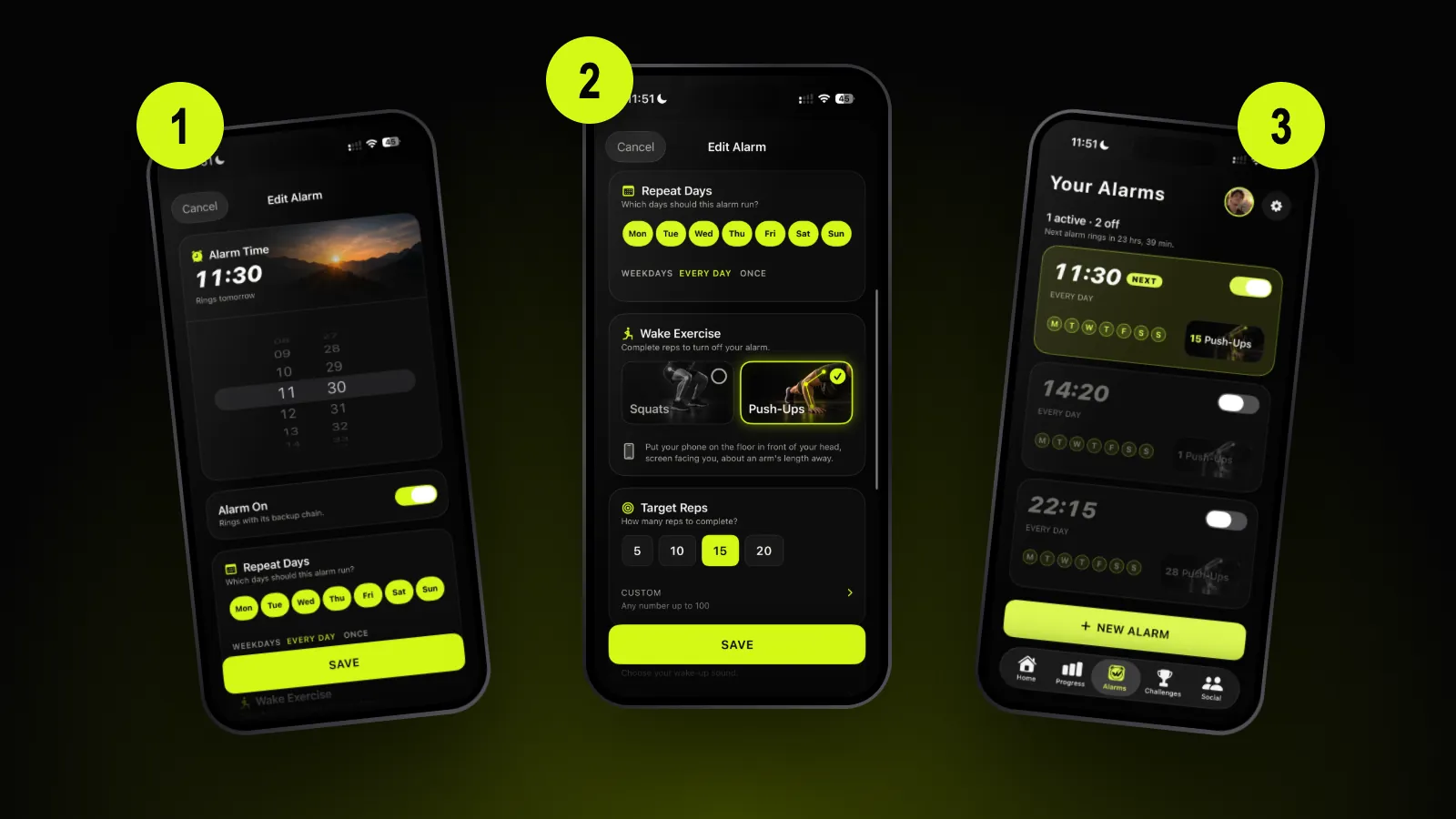
Wakeletics is coming soon to iPhone. This is how it works in the app. Until it is in the App Store, wakeletics.app walks you through all of it.
A Wakeletics alarm is a normal alarm with one extra condition: it only stops for good once your phone's camera has counted the reps you asked for. Setting one takes about as long as setting any other alarm. Here is every choice on the screen, in the order you meet it.
You need an iPhone on iOS 26. Wakeletics rings through Apple's own alarm system, so it sounds like an alarm even when your phone is on silent or in a Focus.
Before the first alarm: two permissions
The first time you open the app it asks for two things, and the alarm cannot do its job without either of them:
- Alarms. iOS asks whether Wakeletics may schedule alarms. Allow it. Without this permission nothing can ring, and the app and its widgets will say so plainly instead of pretending an alarm is set.
- Camera. The camera is how reps are counted. It runs on the phone itself, and no video is recorded or uploaded.
1. Open Alarms and tap New Alarm
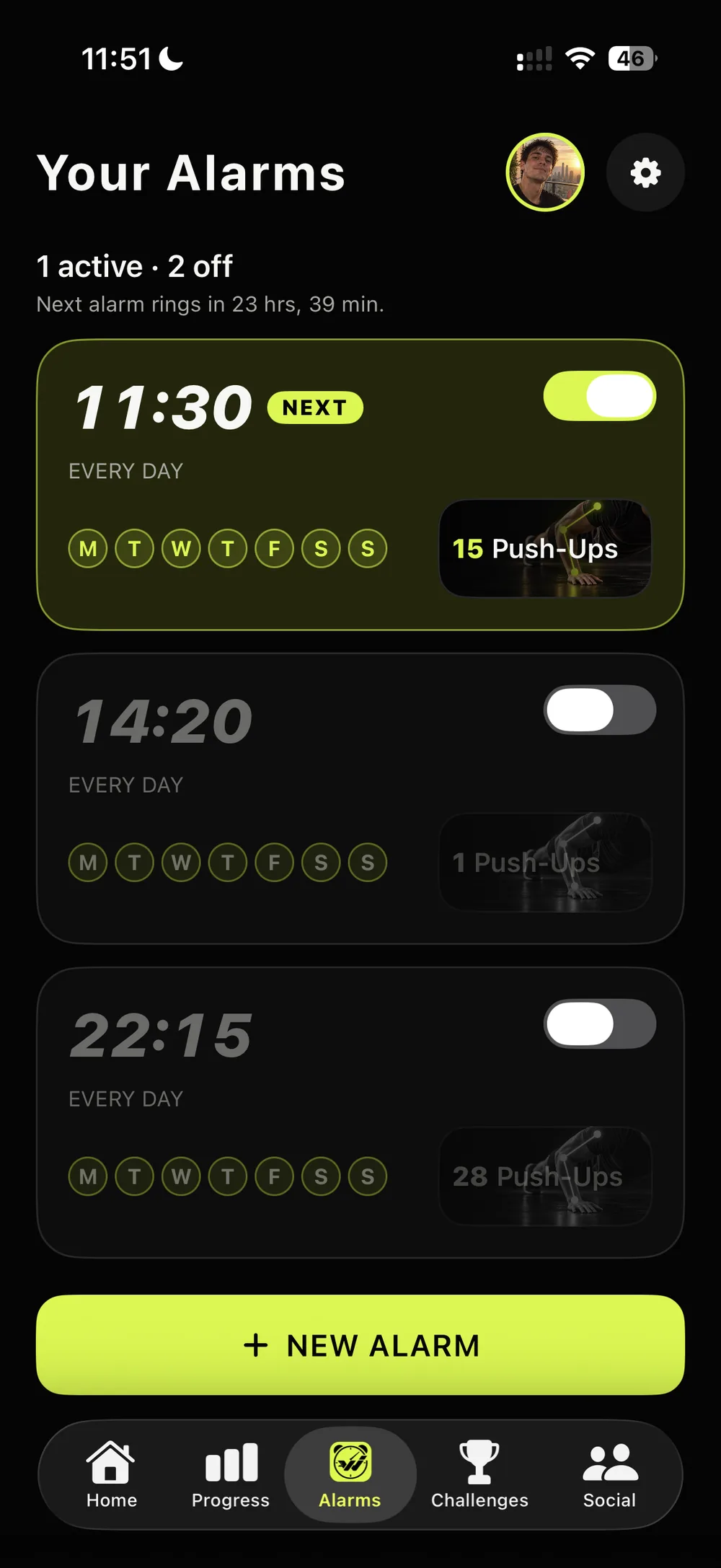
The Alarms tab lists every alarm you have, with the next one to ring marked NEXT. Tap + NEW ALARM at the bottom.
The free version keeps one alarm, for good. If you want separate alarms for weekdays and weekends, that is what Wakeletics Pro adds.
2. Pick the time
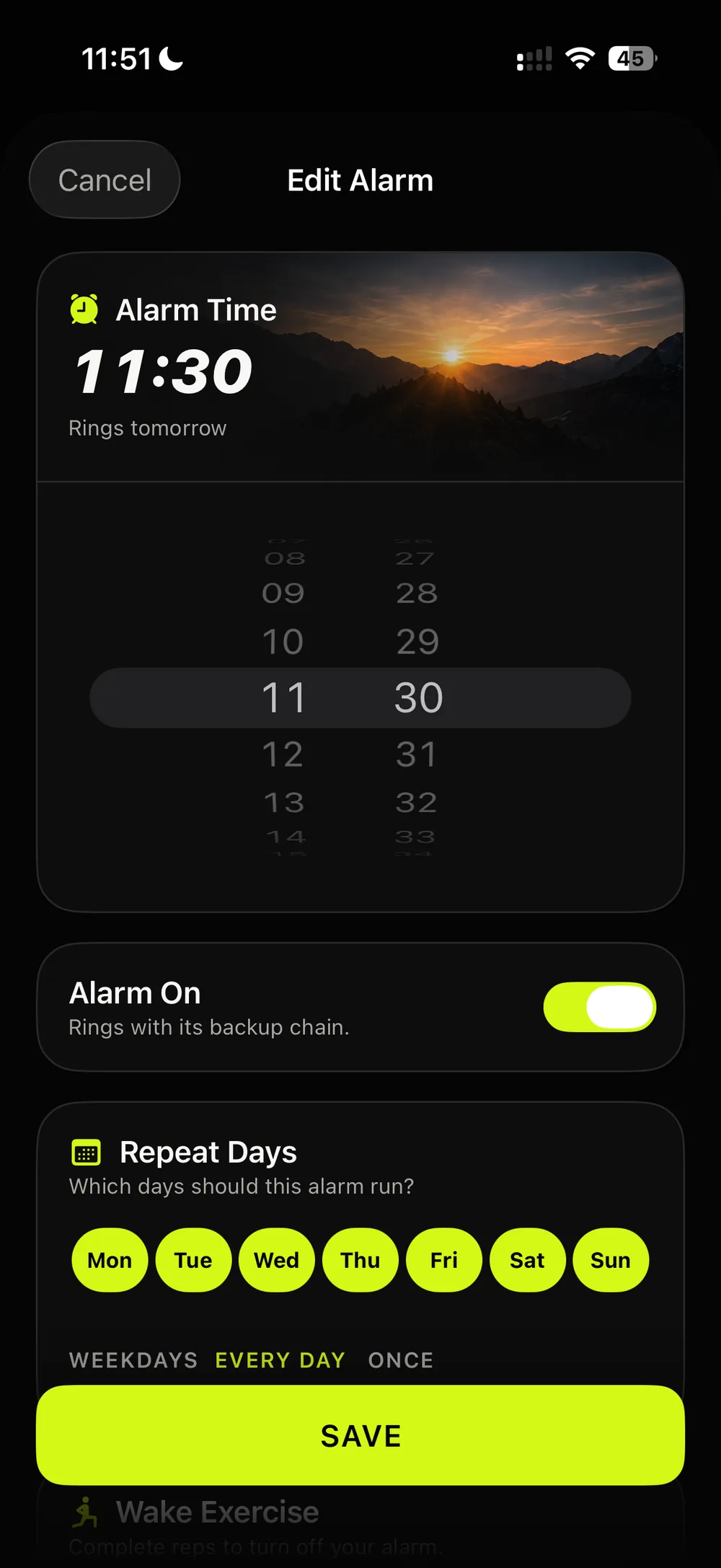
Scroll the wheel to the time you want to get up. The card above it tells you when that is ("Rings tomorrow"), which saves some arithmetic at midnight.
Alarm On is already switched on. Under it, the app reminds you that the alarm rings with its backup chain. More on that in step 7.
3. Choose the days
Tap the days you want it to ring, or use one of the shortcuts under them:
- Weekdays, Monday to Friday
- Every day
- Once, for a single morning
Every day is worth considering. Your streak counts Saturdays the same way as Tuesdays, and a steady wake time on weekends is what keeps your body clock in place.
4. Push-ups or squats
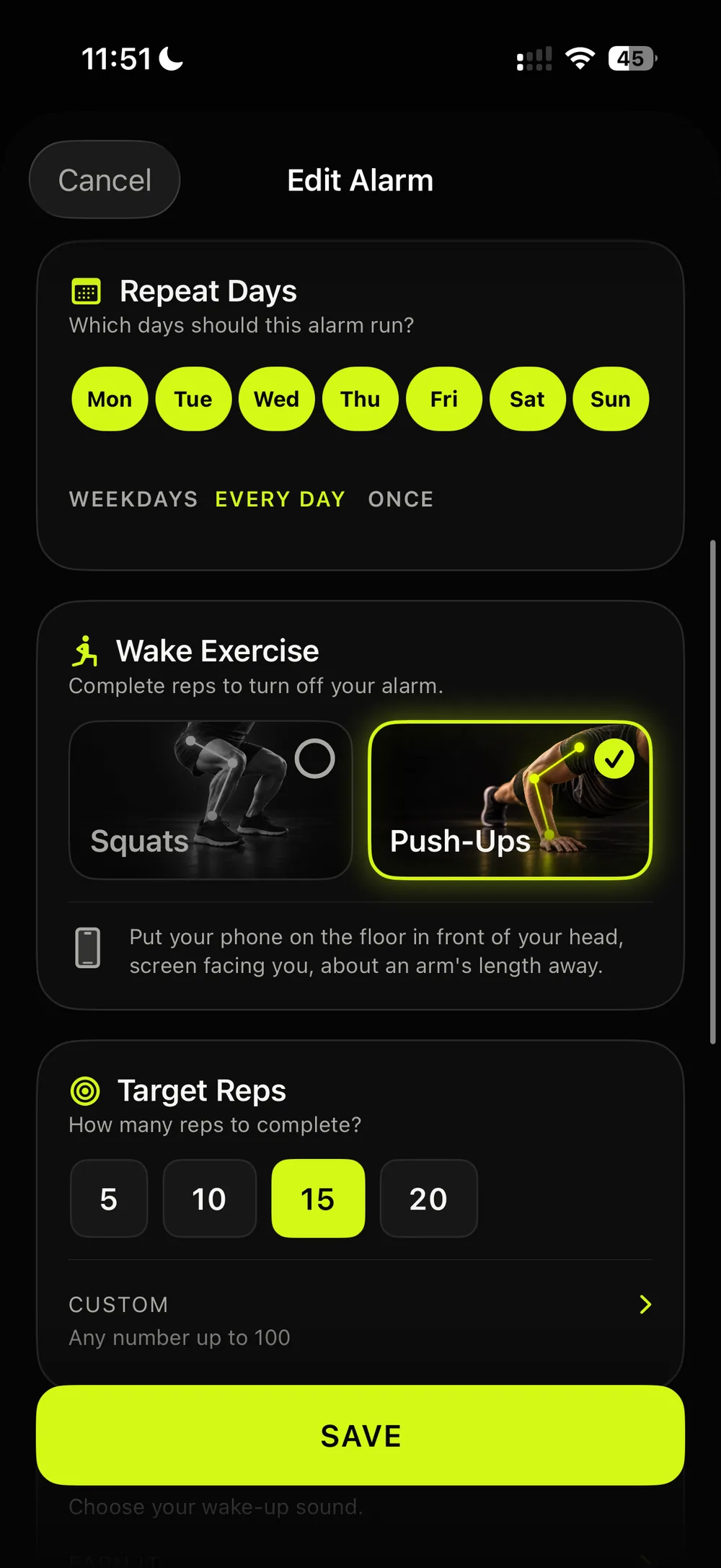
Wake Exercise is the deal you make with yourself: do the reps and the alarm is done. Pick one:
- Push-Ups. Put the phone on the floor in front of your head, screen facing you, about an arm's length away.
- Squats. Stand the phone about two metres away, facing you, so your whole body is in the frame.
The app shows the same tip on this screen, so you don't have to remember it. You can change the exercise on any alarm, any time.
5. Decide how many
Target Reps offers four quick picks:
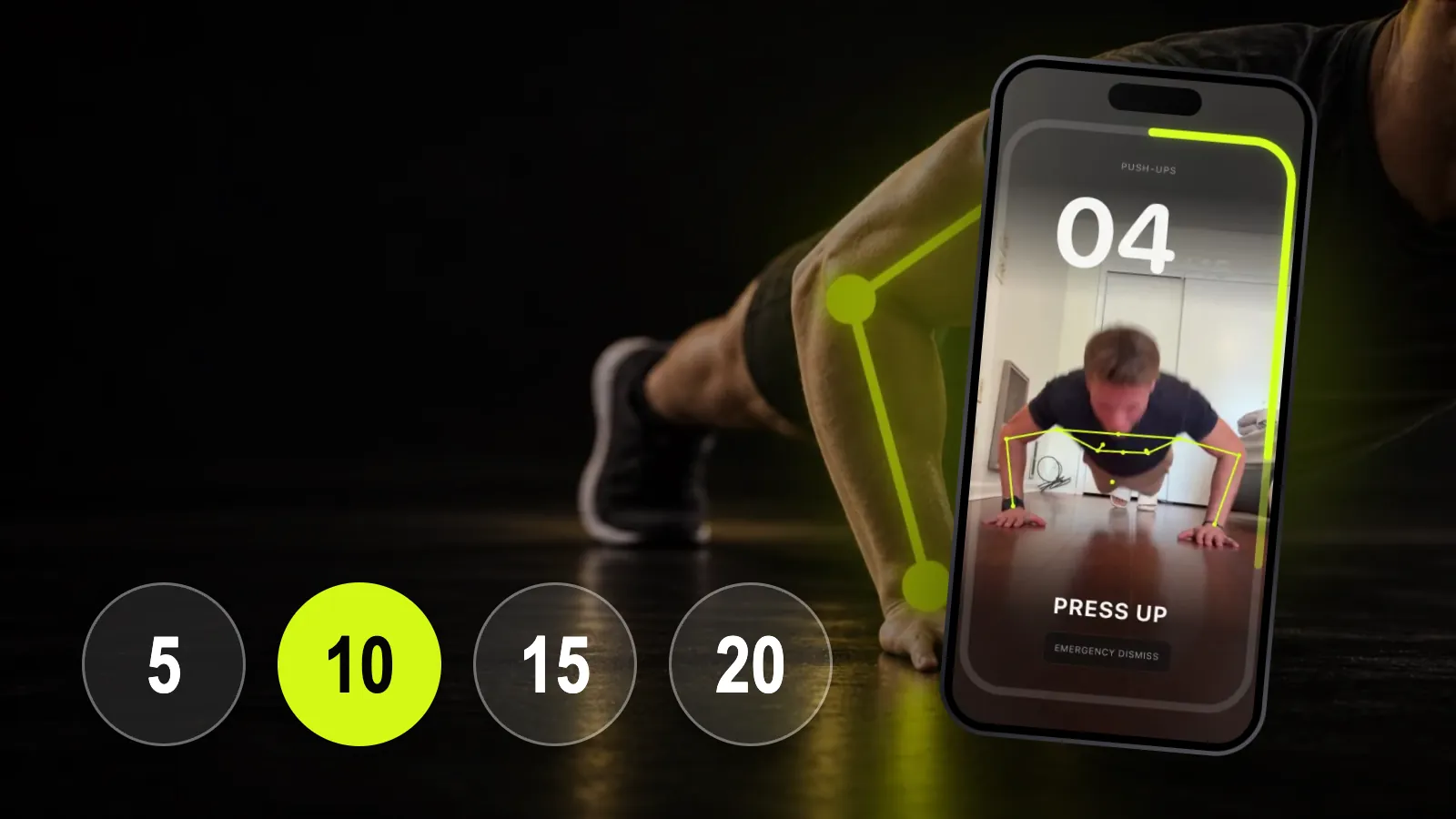
- Push-ups: 5, 10, 15 or 20
- Squats: 10, 15, 20 or 30
Tap Custom for any number up to 100. Start lower than your pride suggests. A number you can hit half asleep every day does more for you than a big one you skip.
6. Choose the sound
Alarm Sound opens the sound picker. The six Wakeletics tones are free: Earn It, Sprint, Pulse, Summit, Sunrise and Ascend, from urgent to gradual. Pro adds the produced Pro Audio wake tracks and lets you record your own voice or bring a song you own.
Below the sound there is an optional Label: a name for the alarm, or a line of your own, like the app's example Rise. Move. Be Better.
7. Choose how hard the backup rings push
This is the part that makes a Wakeletics alarm hard to ignore. If you silence the ring without doing the reps, the next one is already on its way. Backup Rings sets how persistent it is:
- Gentle: 2 backup rings over 5 minutes
- Standard: 4 backup rings over 15 minutes
- Relentless: 6 backup rings over 25 minutes
The backups come close together at the start on purpose. The first two minutes are when a half-asleep person is most likely to drift off again.
Tap SAVE. The alarm appears on the list, switched on.
When it rings
The alarm shows on your Lock Screen like any iPhone alarm. Its button names the deal, for example 15 PUSH-UPS. Tap it and Wakeletics opens straight into the workout.
- Set the phone down where the tip said. The screen tells you what it still needs: Step into frame, Show your arms.
- Wait for READY, then move. Each full rep counts, the number goes up, and a half rep does not count.
- Hit your number. The screen says COMPLETE. Tap CONTINUE. That is the moment your morning is saved, so don't leave the app before it.
If your room is too dark for the camera, the screen turns into a soft light so it can see you. And Emergency Dismiss is always on the screen. It is free, it is one confirmation away, and you can never get stuck behind the workout. A morning ended that way just does not count toward your streak.
Morning earned
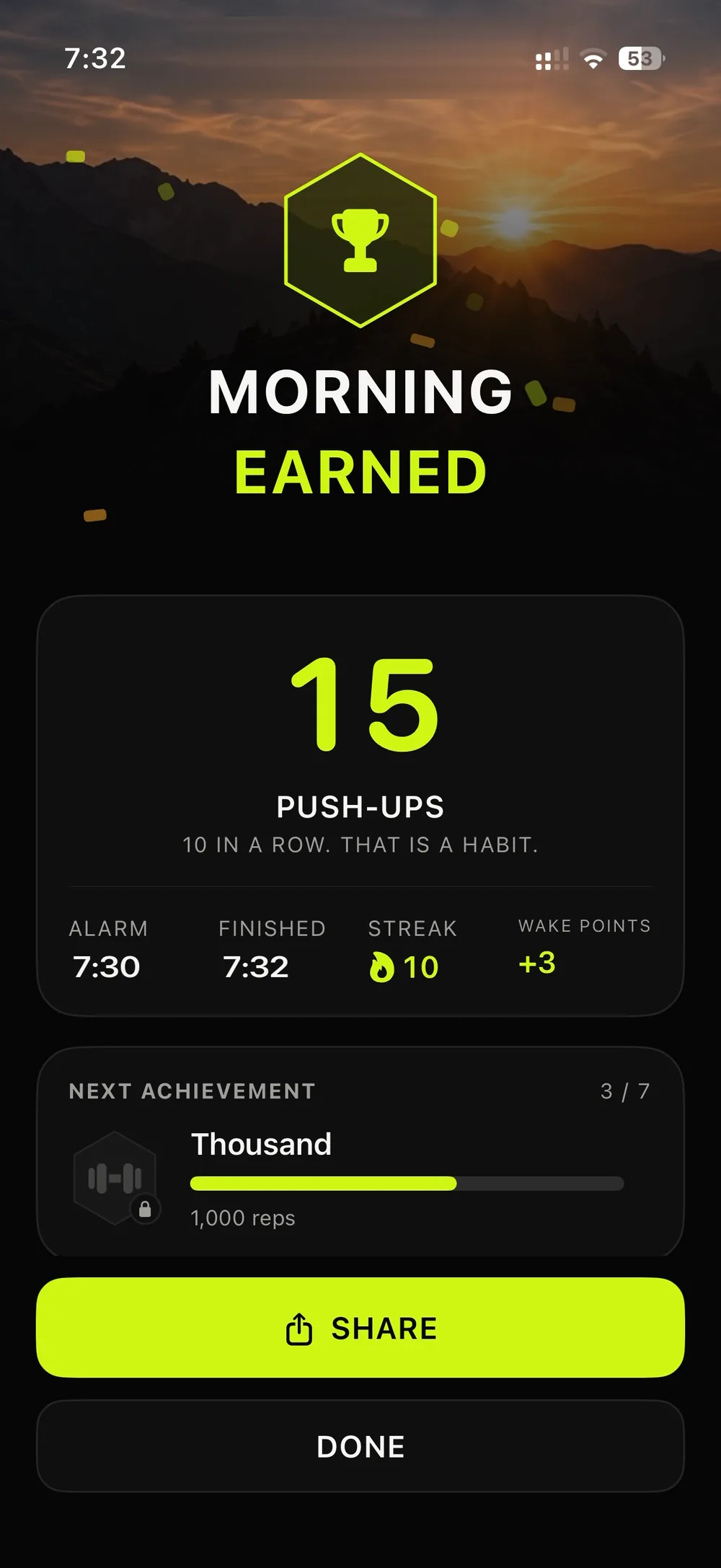
Then you get the Morning Earned screen: your reps, the time the alarm rang, the time you finished, your streak and the Wake Points the morning paid. From there, DONE closes it and SHARE opens the Share Studio, if you want anyone to know.
Three small habits that help
- Allow the evening reminder. If you turn it on, Wakeletics checks in the evening with tomorrow's alarm, for example 15 squats at 06:30?, with a Confirm and an Adjust. Setting tomorrow takes one tap at night instead of an argument in the morning.
- Put the phone where you will do the reps. Charge it on the floor or across the room. Then the first thing you do when it rings is already the right thing.
- Add a widget. The Next Alarm widget shows tomorrow's time and what it will take, on your Home Screen, your Lock Screen and in StandBy on your nightstand.
Keep reading
All articles →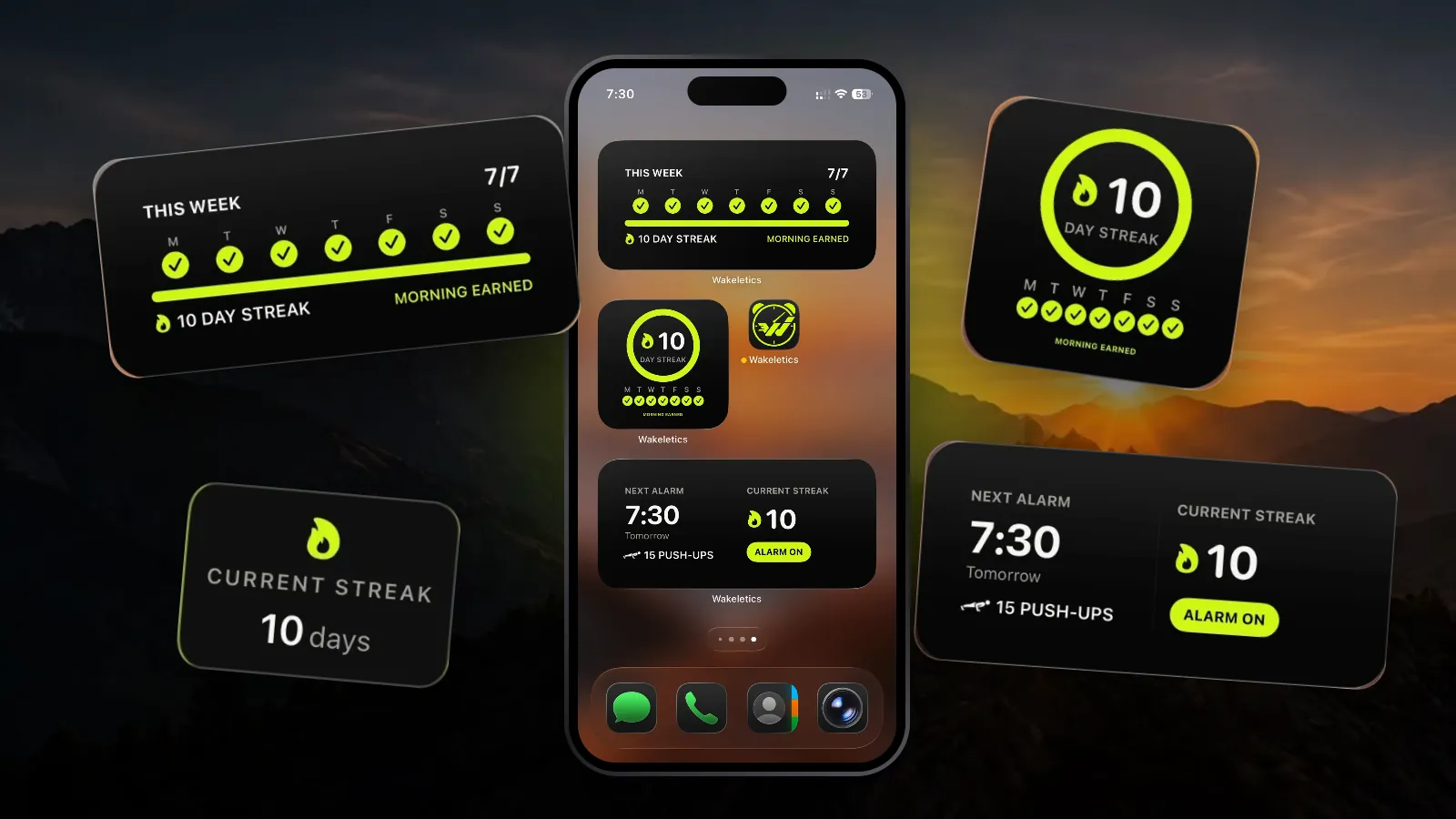 Tutorials
Wakeletics widgets: your streak and tomorrow's alarm, without opening the app
Three widgets for the Home Screen, the Lock Screen and StandBy, what each one tells you, and how to add them in under a minute.
3 October 2026 · 6 min read
 Guides
How many push-ups should I do every morning, and is it OK right after waking?
There's no magic number. Here's how to pick yours, why a wake-up set isn't a workout, what the research says about push-ups and health, and how to look after your back first thing.
4 October 2026 · 7 min read
 Guides
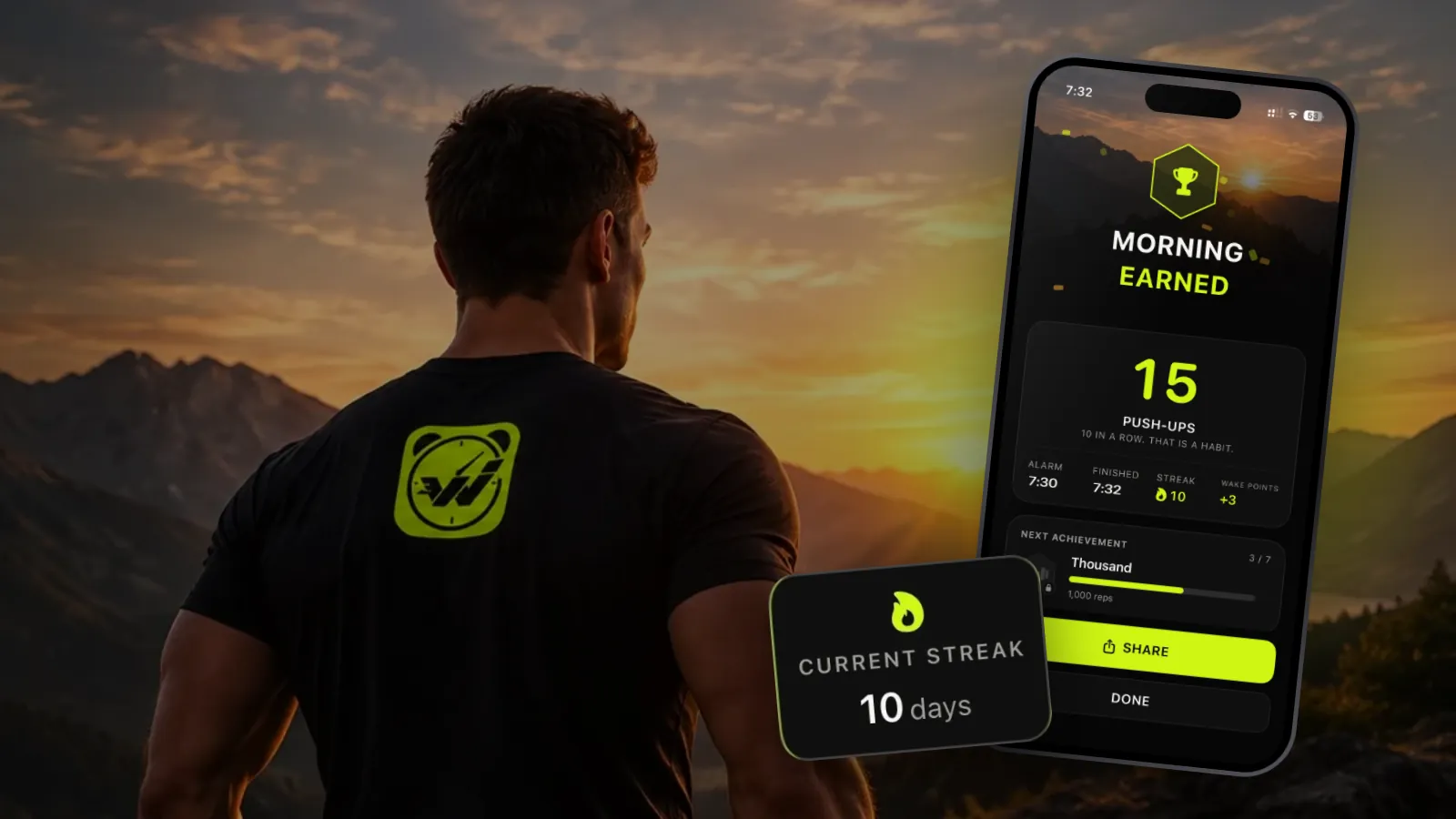
How to get out of bed when your alarm goes off: the first 10 minutes
Nothing makes you sharp the second you wake up, and the research is honest about that. What does help is getting vertical fast. A minute-by-minute plan, with what's evidence and what's just habit.
4 October 2026 · 7 min read
Coming soon to iPhone
Set it tonight.
Two minutes in the evening, one decision made while you can still think clearly. The morning only has to follow through.
Not in the App Store yet. wakeletics.app walks you through the whole app.