

Tutorials
Wakeletics widgets: your streak and tomorrow's alarm, without opening the app
Three widgets for the Home Screen, the Lock Screen and StandBy, what each one tells you, and how to add them in under a minute.
By Daniel & Samuel Krucay, co-founders of Wakeletics
· 3 October 2026 · 6 min read
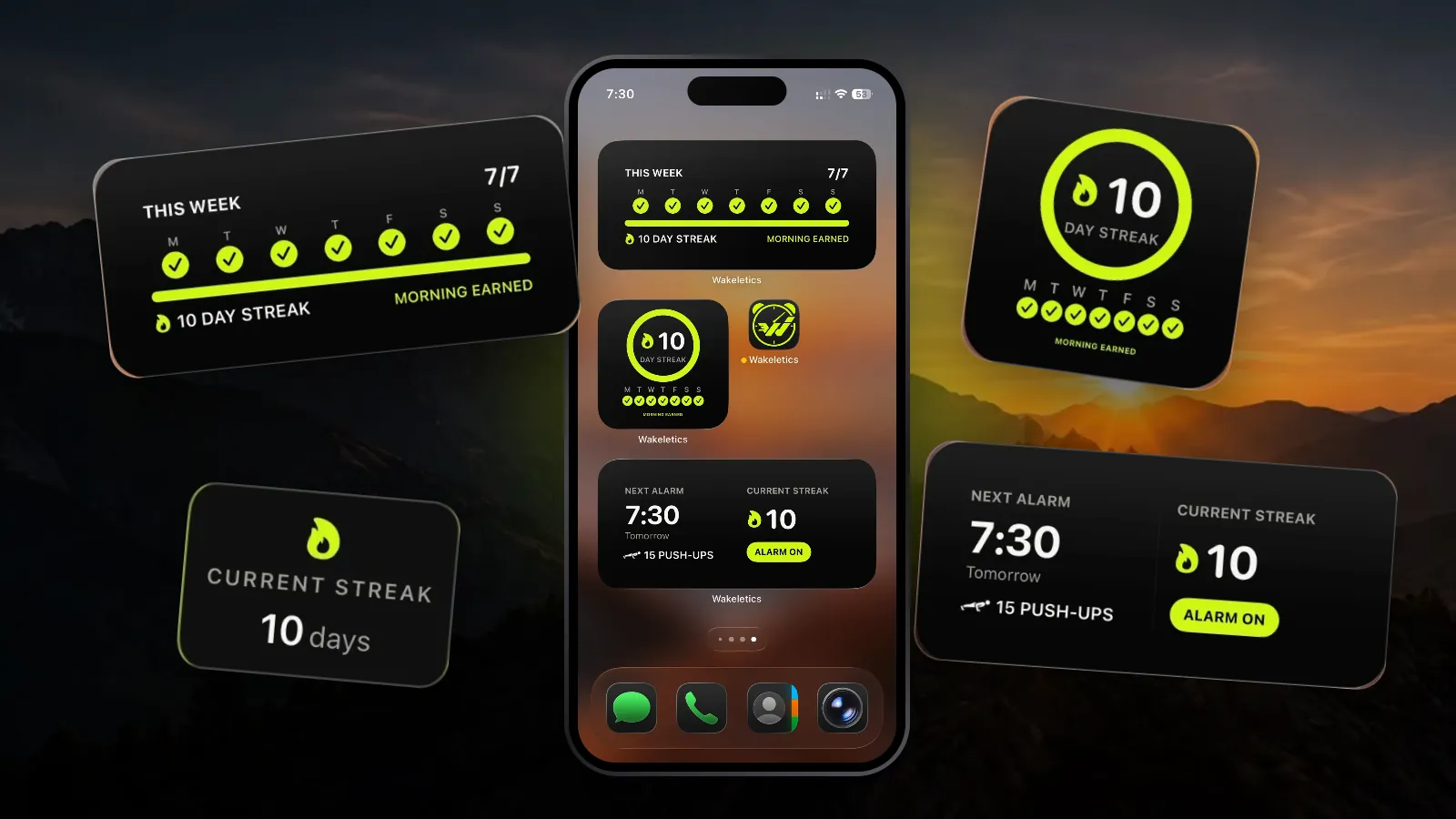
Wakeletics is coming soon to iPhone. This is how it works in the app. Until it is in the App Store, wakeletics.app walks you through all of it.
The easiest morning to skip is the one you forgot you had planned. Wakeletics widgets keep two facts in front of you, how your streak is doing and what tomorrow's alarm will ask of you, without you opening the app.
There are three widgets. They are free, and all three read the same data, so they never disagree with each other or with the app.
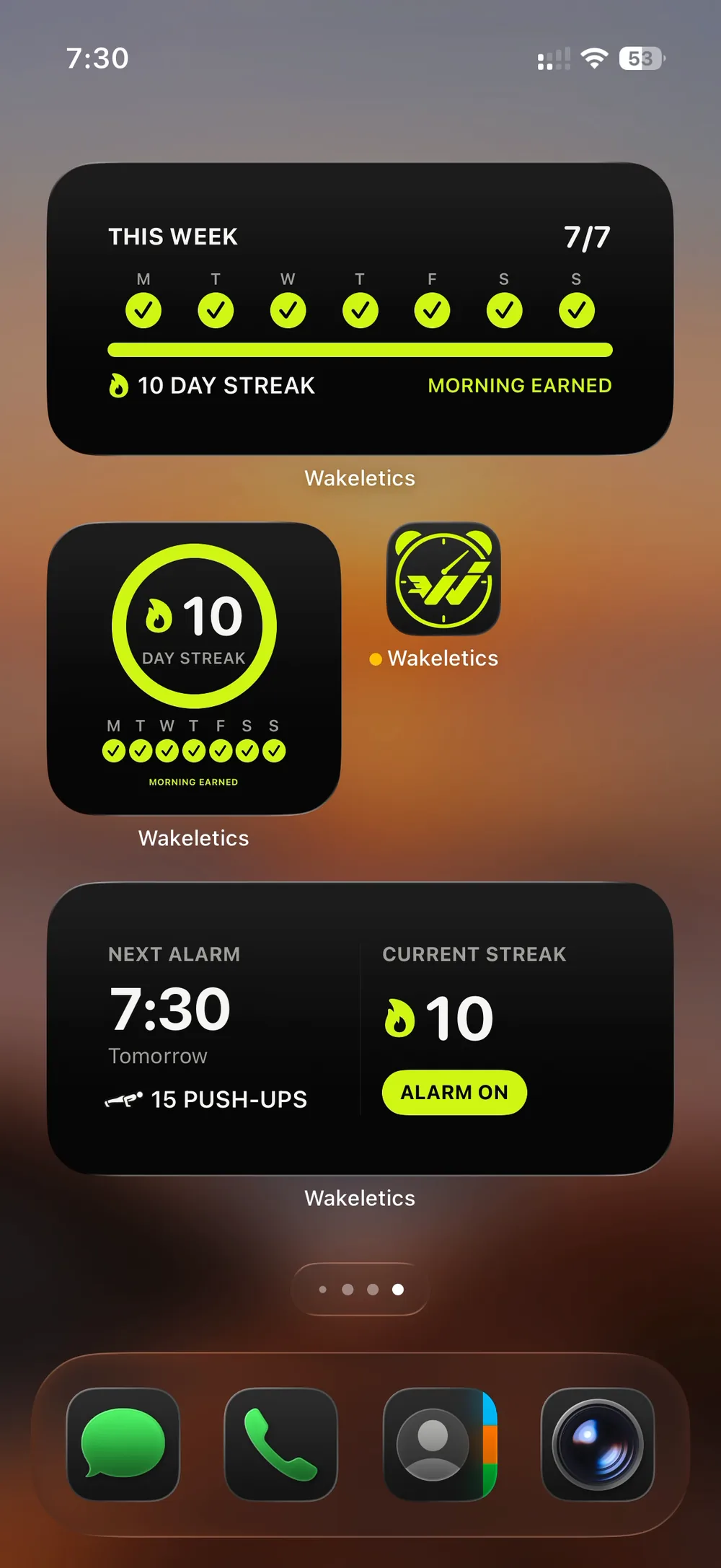
The three widgets
This Week
A medium widget with Monday to Sunday and a tick for every morning you have earned, plus your streak and today's status. It's the fastest way to see whether this week is on track. Tap it and the app opens on Progress.
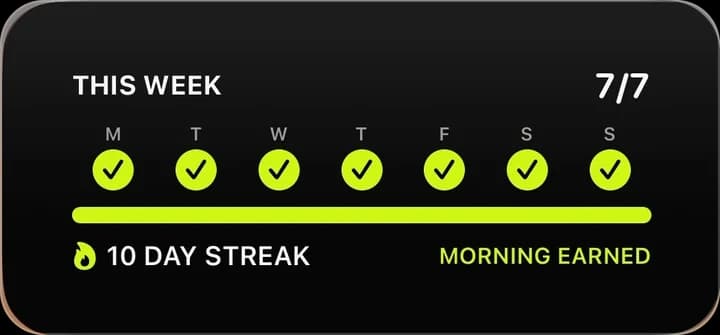
Streak
A small widget with your streak in the middle of a ring. The ring shows the week, not the streak. A streak has no maximum, so a ring that filled with it would stop meaning anything around day 200. The Streak widget also comes in Lock Screen sizes: a circle, a rectangle, and a single line above the clock. Tap it and the app opens on Home.
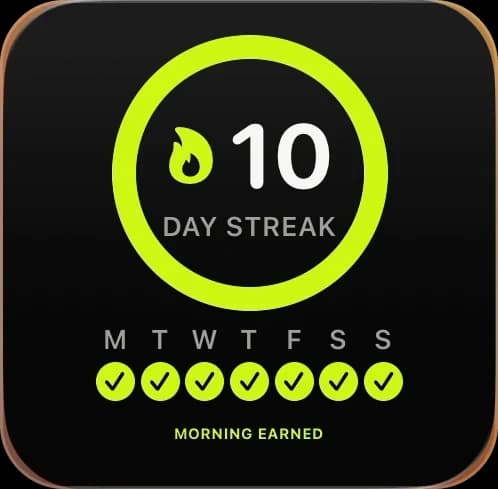
Next Alarm
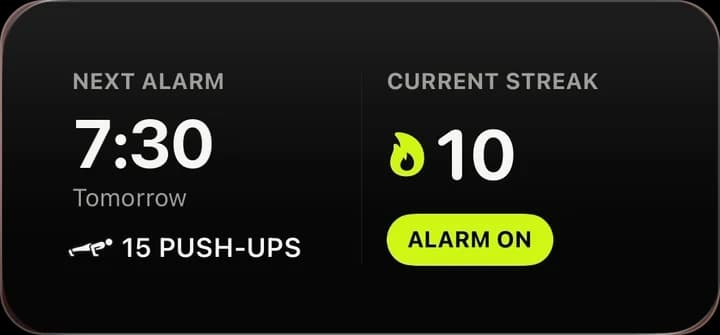
Small or medium. It shows the time of your next alarm, whether it is tomorrow, and what it will take, for example 15 push-ups. The medium size adds your current streak. Once today's morning is earned, the small one says MORNING EARNED instead. Tap it and the app opens on Alarms.
What the words on them mean
The widgets don't make you guess. Every one ends with one of four short lines:
- MORNING EARNED: today is done.
- KEEP IT ALIVE: your streak is still running and today's morning is still to earn.
- NEW STREAK TODAY: the last run has ended, and today starts a new one.
- EARN YOUR FIRST MORNING: there's no history yet.
They update by themselves at midnight, even if you haven't opened the app. A widget that showed yesterday's streak as today's would be worse than no widget.
ALARM ON is a label, not a switch. It tells you the alarm is set. Turning an alarm on properly means scheduling it and all of its backup rings, which only the app can do. So tapping the widget takes you to the Alarms tab, where the real switch is. If iOS hasn't allowed Wakeletics to set alarms yet, the widget says NOT ARMED instead of showing a time. It will never show an alarm as set when it won't ring.
How to add them to your Home Screen
- Touch and hold an empty spot on your Home Screen until the apps start to jiggle.
- Tap Edit in the top corner, then Add Widget.
- Search for Wakeletics.
- Swipe to the widget and size you want: Streak, This Week or Next Alarm.
- Tap Add Widget, drag it into place, and tap Done.
How to add the Streak to your Lock Screen
- Touch and hold the Lock Screen, then tap Customize and choose the Lock Screen.
- Tap the widget row under the clock and pick Wakeletics → Streak, either the circle or the rectangle.
- To put it on the single line above the clock, tap that line and choose Wakeletics there.
- Tap Done.
On the Lock Screen, the widget takes on your wallpaper's tint, just like Apple's own.
StandBy: the one for your nightstand
StandBy shows widgets full-size when your iPhone is charging on its side and locked. For an alarm app, that is the one screen that matters. Put the Next Alarm and Streak widgets side by side, and the phone on your nightstand tells you tonight what tomorrow morning will ask for.
- Make sure StandBy is on in Settings → StandBy.
- Charge the phone on its side, locked. Swipe to the widget view.
- Touch and hold a widget stack, tap +, and add Wakeletics.
At night StandBy turns everything red so it won't light up the room. That's iOS, not a setting in the widget.
Why widgets help a habit stick
Habits are built on cues: the same trigger, the same context, over and over. The alarm is the morning cue. The widgets are the evening one: a glance at the Home Screen before bed shows tomorrow's time and the number of reps, and the decision is already made by the time you lie down.
They also do it without guilt. Nothing a Wakeletics widget says tells you off. There is no don't forget and no last chance. It shows you where you are and leaves the rest to you.
Keep reading
All articles →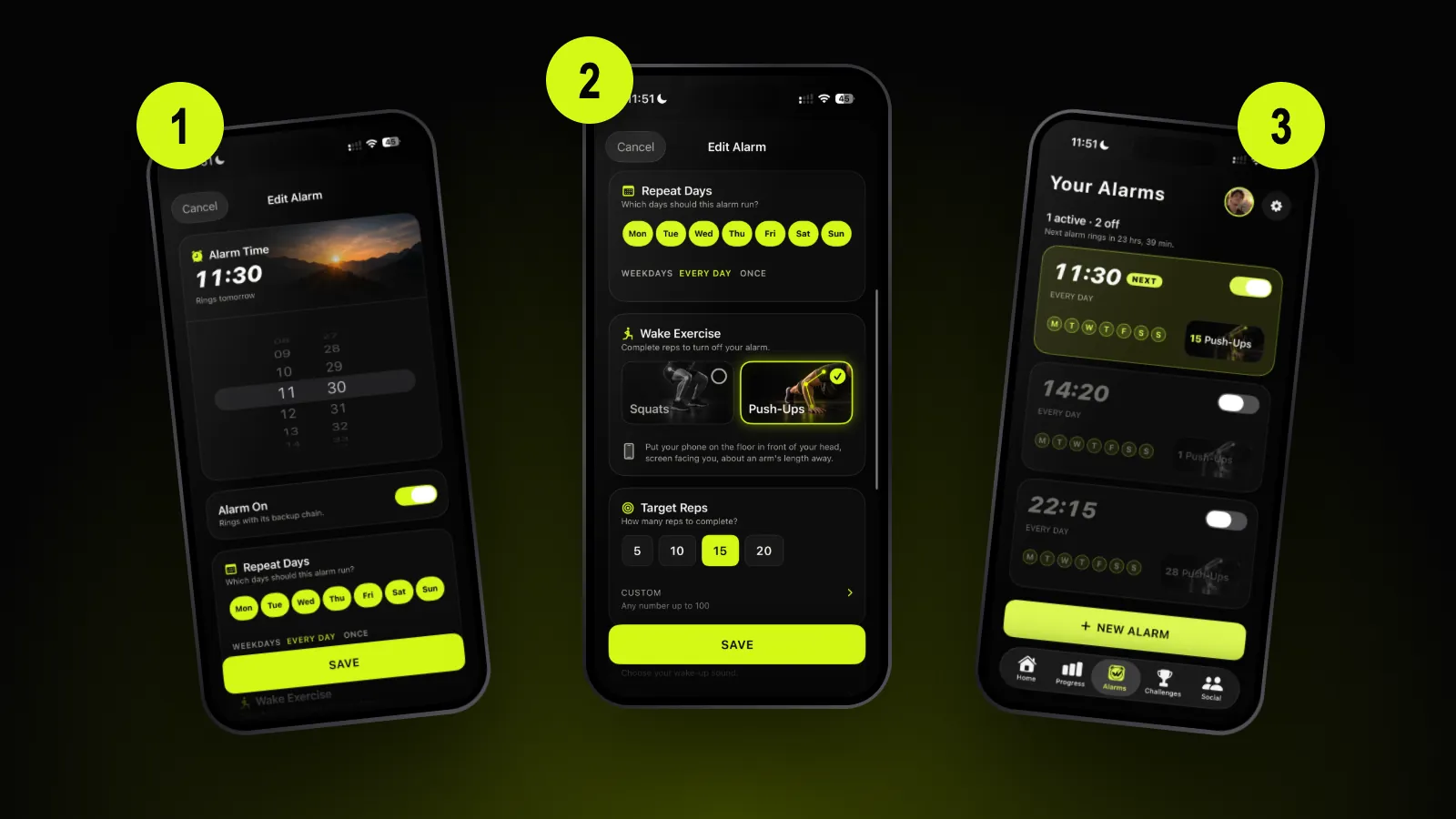 Tutorials
How to set your first Wakeletics alarm, step by step
Time, days, push-ups or squats, how many, the sound and the backup rings — every choice on the alarm screen, and what happens when it rings.
4 October 2026 · 6 min read
 Guides
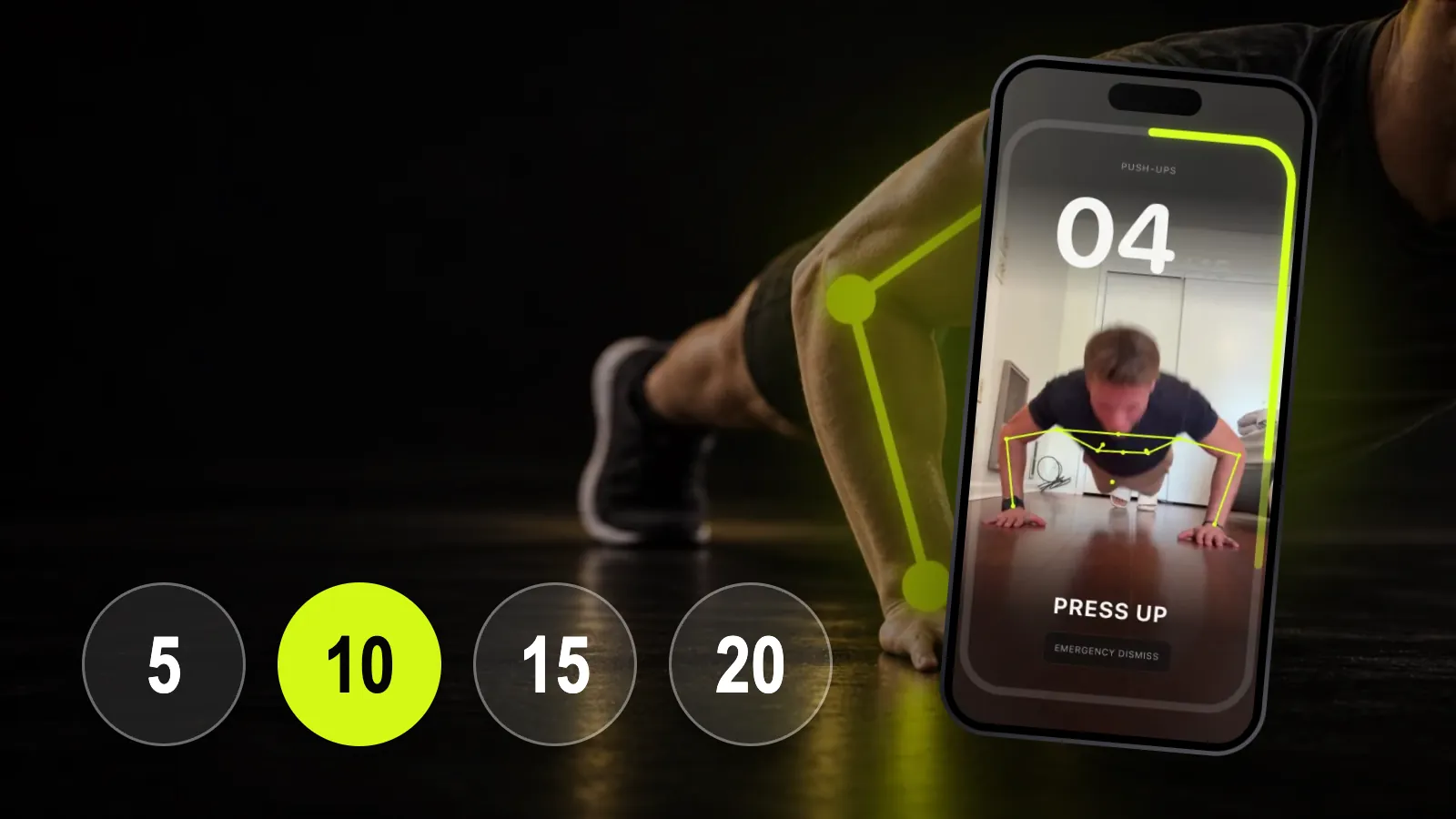
How many push-ups should I do every morning, and is it OK right after waking?
There's no magic number. Here's how to pick yours, why a wake-up set isn't a workout, what the research says about push-ups and health, and how to look after your back first thing.
4 October 2026 · 7 min read
 Guides
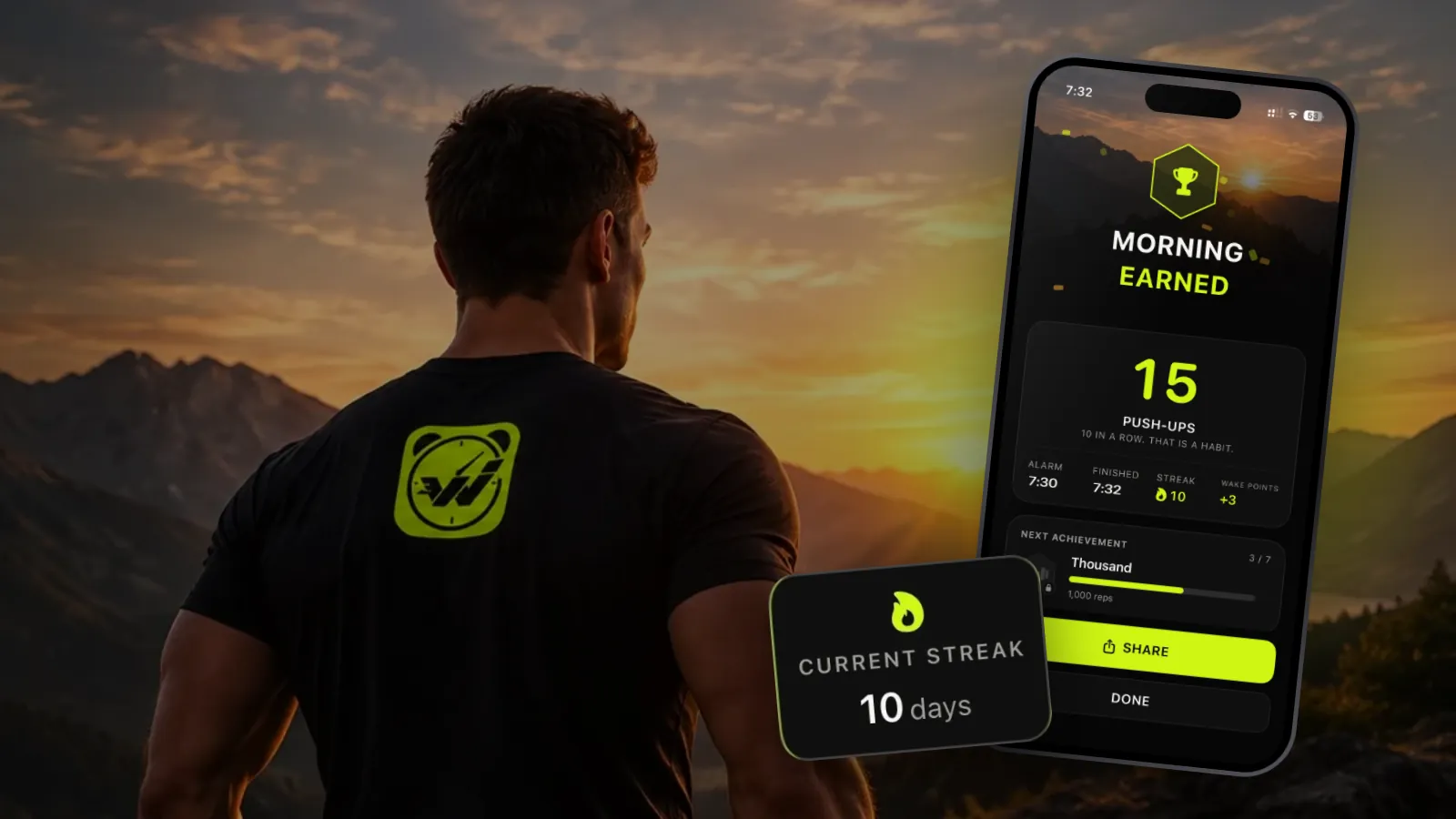
How to get out of bed when your alarm goes off: the first 10 minutes
Nothing makes you sharp the second you wake up, and the research is honest about that. What does help is getting vertical fast. A minute-by-minute plan, with what's evidence and what's just habit.
4 October 2026 · 7 min read
Coming soon to iPhone
Keep it in sight.
Your streak and tomorrow's alarm on the Home Screen, on the Lock Screen and on your nightstand. The app doesn't need to be open for any of it.
Not in the App Store yet. wakeletics.app walks you through the whole app.